

v2rayNG Windows connection tutorial
1
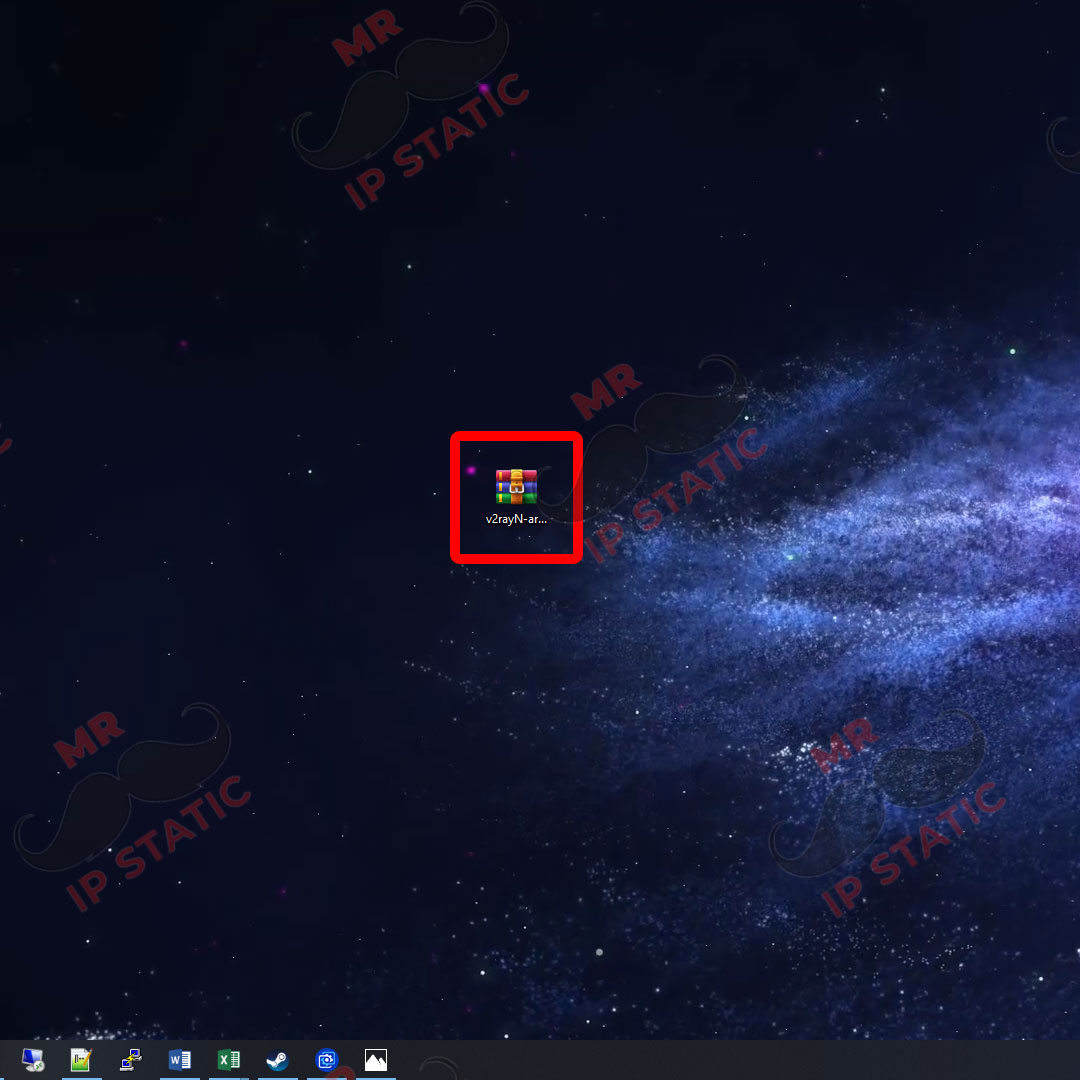
Install the v2rayNG software.
2
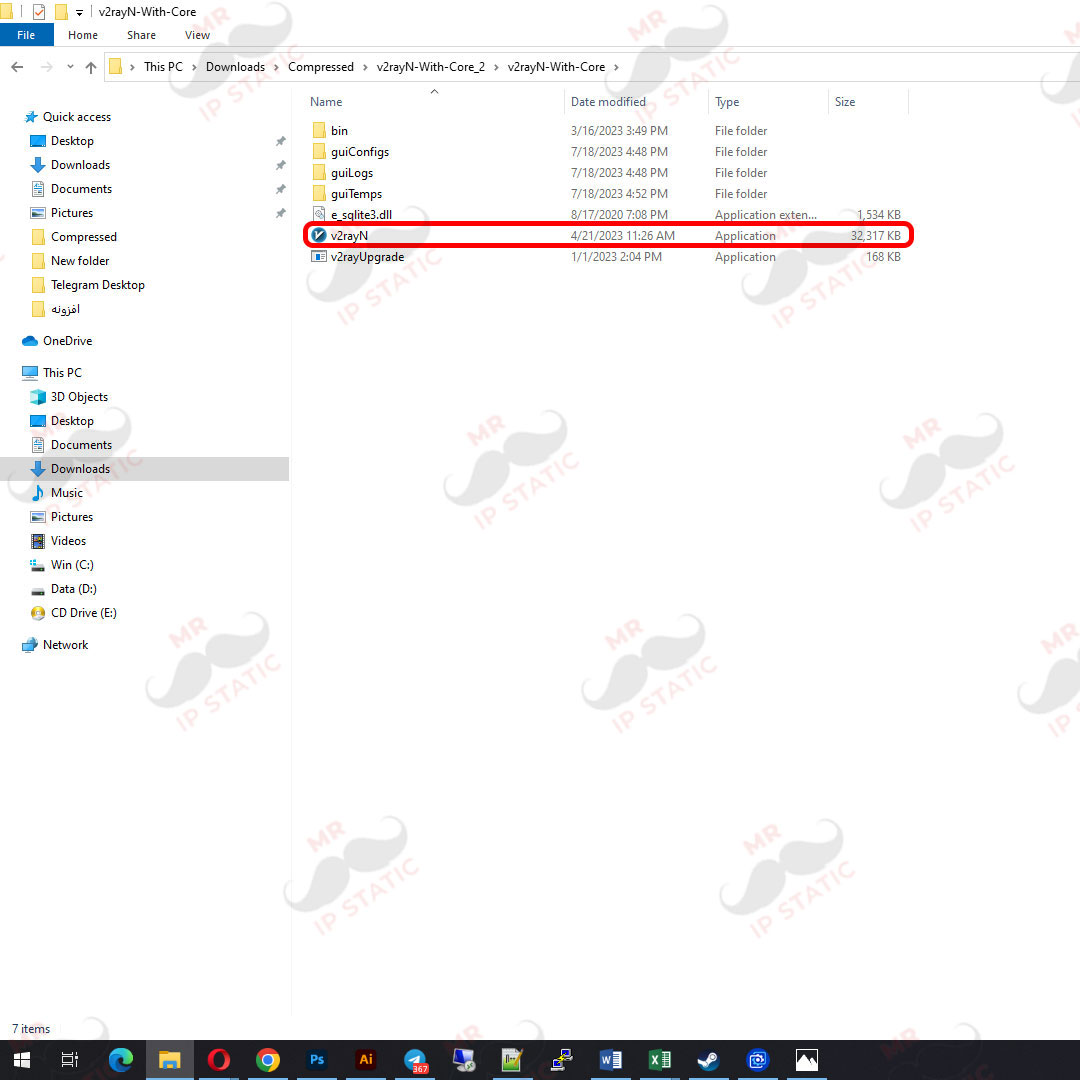
Run the v2rayNG software.
3
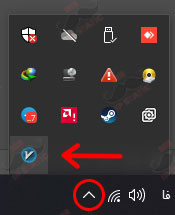
In the taskbar (bottom bar) on the right, select the flash option and run the v2rayNG software.
4
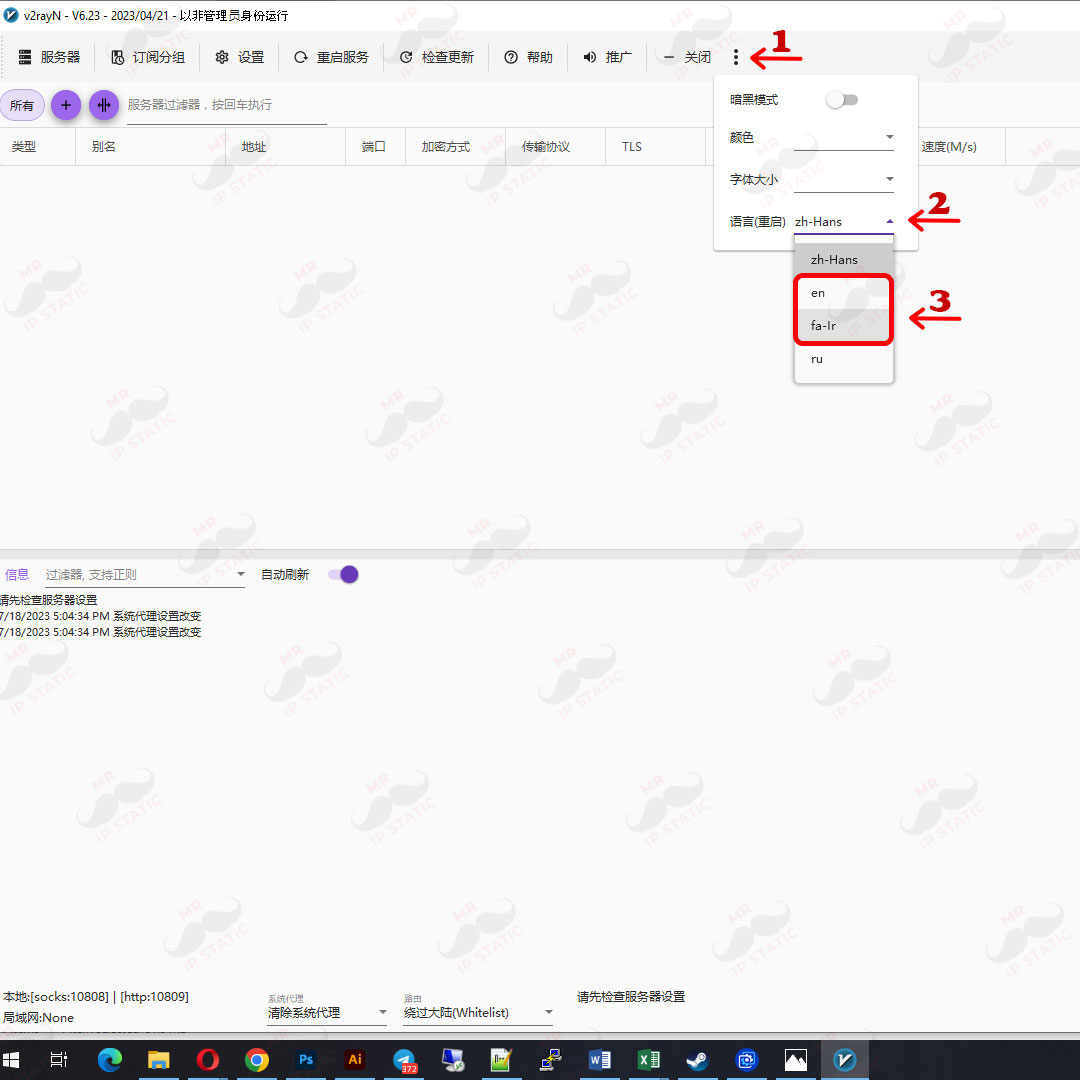
Normally, this software is in Chinese, and to change the language to English or Persian, click the three dots on the right and select the language in the last option.
5
Now, in the taskbar (bottom bar of the screen) on the right, select the arrow option, right-click on the v2rayNG software icon, and close the software by clicking the last option so that the language changes are applied.
6
Now select the Flash option again on the taskbar (bottom bar) on the right and run the v2rayNG software.
7
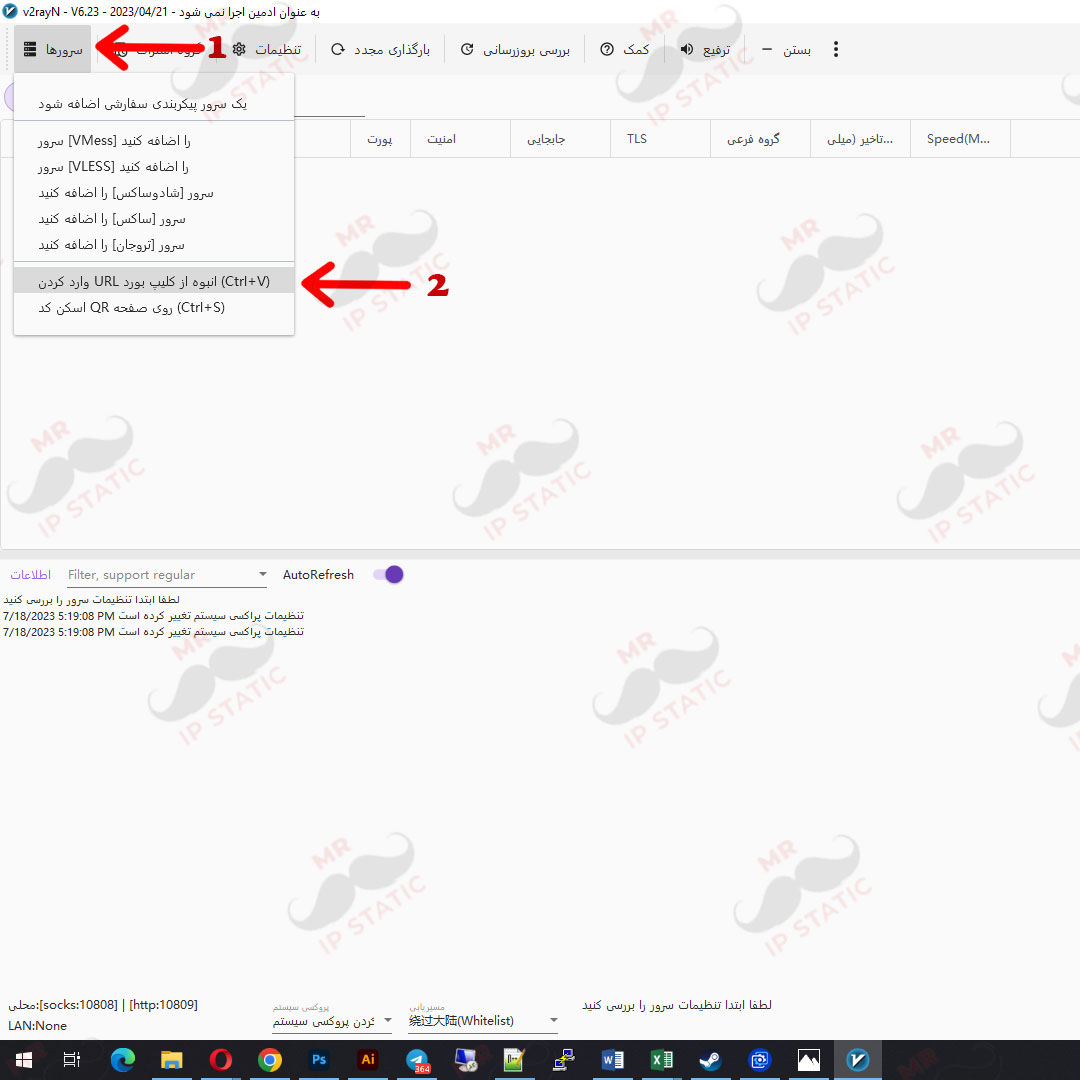
We copy the received v2ray code and open the first tab called Server in the upper left and click the penultimate option (Ctrl+V).
8
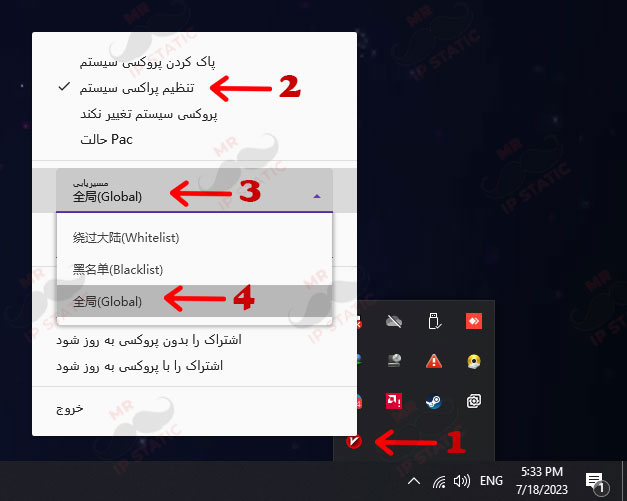
To connect, select the flash option in the taskbar (bottom bar) on the right and right-click on the v2rayNG software. The first option is to shut down the software, and the second option is to connect, and we set the routing settings to (Global).
9
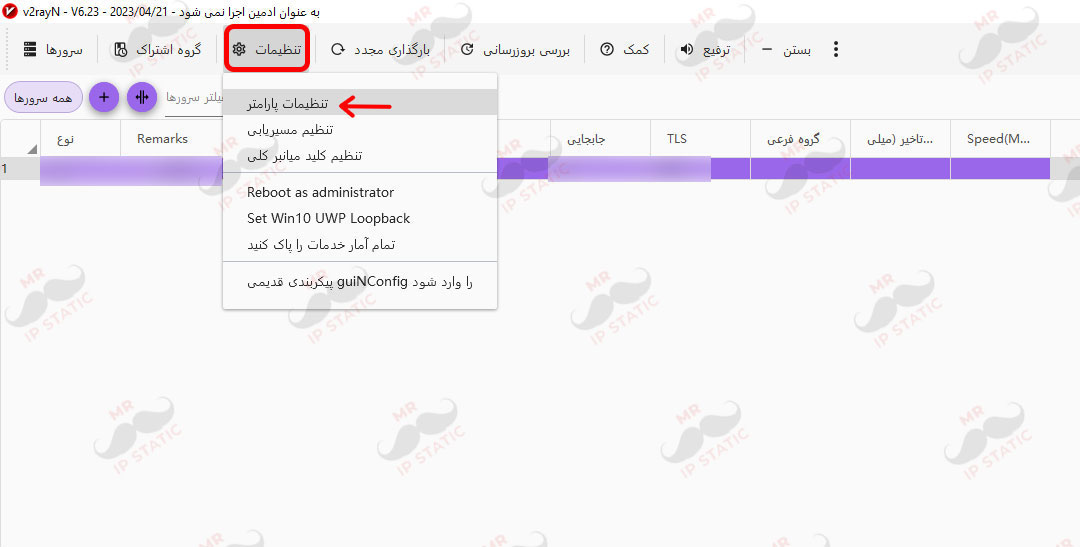
To prevent detection and IP Leak, we need to make one more change. Run the v2ray software and select the first option in the Settings tab.
10
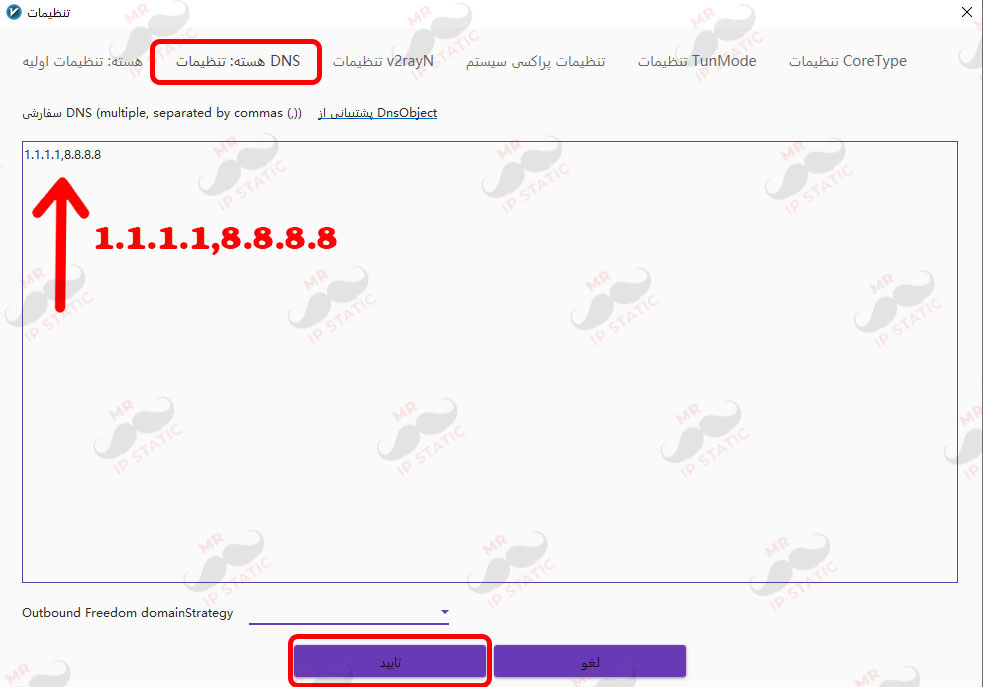
In the opened window, go to the DNS Core Settings tab and enter the value 1.1.1.1,8.8.8.8 and click Confirm at the bottom of the page.